core:markdown
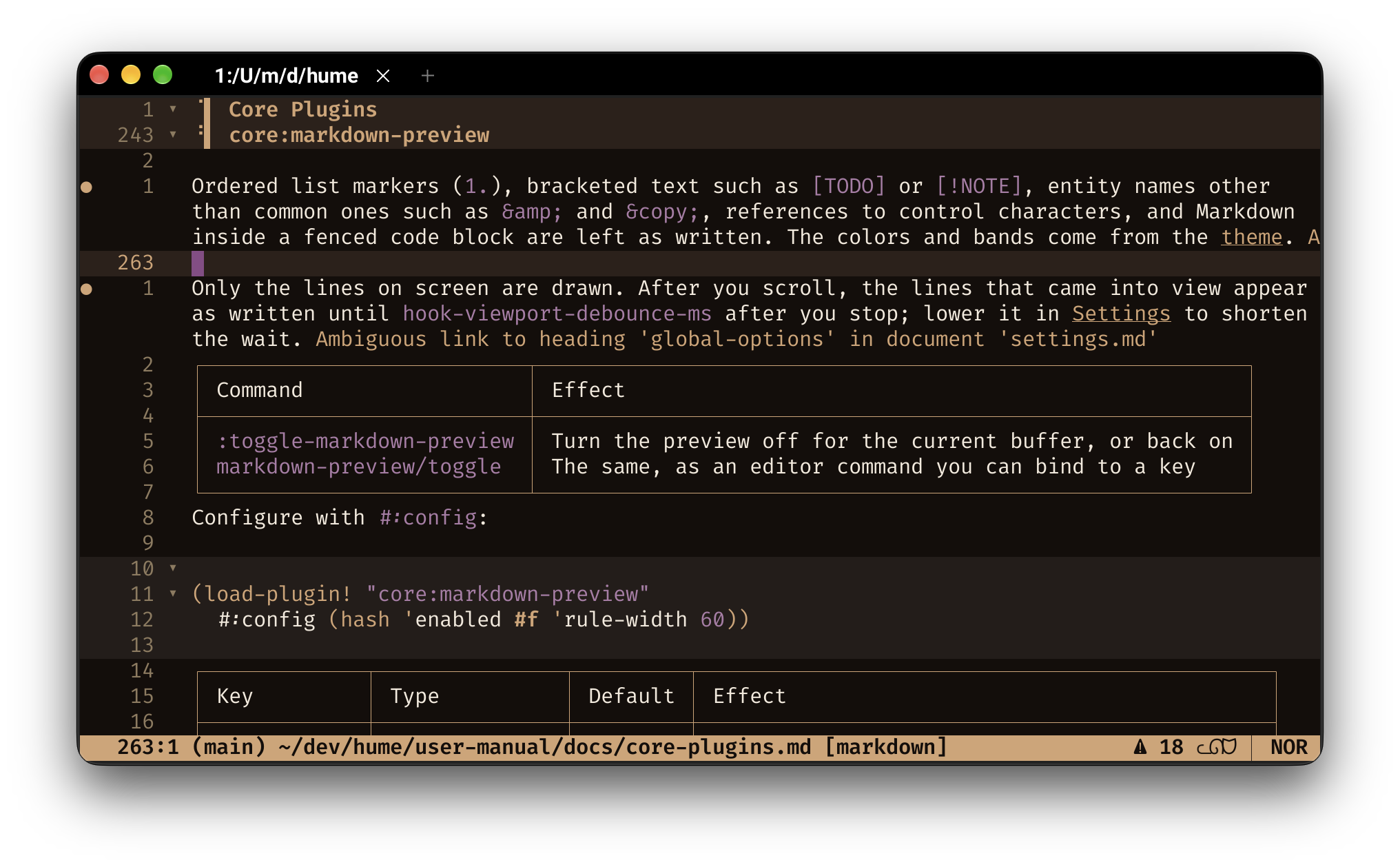
Draws Markdown without its syntax, in the style of a rendered preview, right in the buffer you edit, and helps you write links, lists, task boxes and tables.
(load-plugin! "core:stdlib")
(load-plugin! "core:markdown")
Requires core:stdlib loaded first. It starts when you open a Markdown file, or when a Markdown popup opens with the markdown grammar installed.
It needs the markdown and markdown.inline grammars: install them with :plum-install-grammar if HUME warns that one is missing. Without markdown.inline, the headings, lists, quotes, rules, code blocks and tables are drawn and the emphasis, links and escapes stay as written.
Preview
- A heading's
#becomes its level as a glyph of one to six dots and a bar (⠘▌for a second-level heading) over a tinted band. - Bullets become dots, task boxes become checkboxes, quotes get a bar, and horizontal rules become a line.
- Code fences give way to a background band, and tables are drawn as box grids.
- Emphasis, strikethrough and code spans lose their markers, and links show only their text.
- Escapes and entities (
\*,&,A) show the character they stand for.
Every line the cursor or a selection touches shows its source, in every mode. While a selection is inside a code block or a table, the whole block shows its source.
It also draws Markdown popups, such as a language server's hover, and Markdown documentation in the completion menu's documentation box. A popup shows no source, since no selection is in it, and a table wider than the popup breaks its grid.
The preview draws ordered list markers (1.), bracketed text such as [TODO] or [!NOTE], entity names other than common ones such as & and ©, references to control characters, and Markdown inside a fenced code block as written.
A table wider than the pane draws a broken grid when soft wrap is on. A table's top and bottom border appear only on an empty line next to it. A tab inside a table cell throws its column out of line.
The colors and bands come from the theme; to change them without editing it, style the scopes from your config.
Only the lines on screen are drawn. After you scroll, the lines that came into view appear as written until hook-viewport-debounce-ms after you stop; lower it in Settings to shorten the wait.
:toggle-markdown-preview turns the preview off for the current buffer, or back on.
Pasting a link
Pasting a URL over selected text makes a link: select foo, paste https://example.com, and get [foo](https://example.com). It works with p, P and your terminal's paste shortcut, and one u brings the selected text back.
Pasting the path of a file or folder does the same: over foo, notes/todo.md gives [foo](notes/todo.md). It makes a link when the file or folder exists, a relative path being read from the Markdown file's folder. A path to a heading works too: notes/todo.md#today makes a link when notes/todo.md exists. A URL or a path with a space, or with a parenthesis that has no partner, goes between < and >, as Markdown needs. In a buffer not yet saved to a file, only a URL makes a link.
Pasting a URL or a path over a URL or a link replaces it, as does pasting at a cursor, over text that spans lines, or over text that holds a [ or ] or ends with \.
Completing a link's path
In a link's destination, right after ]( or ](<, Ctrl-Space lists the files and folders next to the Markdown file. After a folder you have typed, such as ](notes/, it lists the ones in that folder. Typing ( right after ], < right after ](, or / after a folder's name, opens the list too.
- The list narrows as you type, and the letters need only appear in order, so
rdmfindsREADME.md. - Start the name with
.to list hidden files. - A name with a space, or with a parenthesis that has no partner, goes between
<and>. A folder's name gets only the<, so you can go on to a file inside it, which adds the>. - Typing a space inside
<and>closes the list;Ctrl-Spaceopens it again.
Following a link
g d follows the link under the cursor:
- A link to a file, such as
[notes](notes/todo.md), opens the file. A relative path is read from the Markdown file's folder, and%20in it stands for a space. A path to a missing file or to a folder shows an error. - A link to a heading, such as
[today](notes/todo.md#today)or[intro](#intro), also moves to that heading. The part after#is the heading's text as the preview shows it, written in lowercase, with spaces as-and punctuation dropped:## [API](api.md) & moreis#api--more. A second heading with the same text adds-1, a third-2, and so on. When no heading matches, the file opens at its start and a warning says so. For a file that has just opened, the warning can take up to a second, and the cursor still moves to the heading if it turns up after that. A#alone, as in[top](#), goes to the start. - A web address or a mail link, such as
[site](https://example.com),<https://example.com>,[me](mailto:me@example.com)or<me@example.com>, opens in the app your system uses for it: your browser, or your mail app. A link with any other scheme, such asfile:orftp:, shows an error. - An image, such as
, opens in your system's image viewer. An image link to a file that isn't an image opens that file in HUME. - A wiki link, such as
[[todo]], and a reference link, such as[docs][1], or[docs]with a[docs]: …line, go to the Markdown language server. marksman follows them only when the project's folder is a git repository or holds a.marksman.tomlfile. Any text in square brackets counts as a reference link.
Elsewhere, g d does nothing.
Lists
Continuing a list
In a list, Enter starts the next item: a bullet gets the same bullet, a numbered item the next number, and a task item an unchecked box. A nested item continues at its own indent, and a quote line gets the next line's >. o and O open a line below or above in the same way.
Enter on an item with nothing after its marker or task box ends the list instead: the marker goes, and the items after it are renumbered to close the gap. On an empty quote line, it ends the quote.
Renumbering
Adding an item to a numbered list renumbers the items after it, so a new item after 2. turns the 3. below it into 4..
Changing the number of a numbered item renumbers the items after it, so turning 3. into 1. makes the 4. below it 2.. Deleting an item, as x d does, renumbers the items after it to close the gap, and deleting the first item numbers the rest from its number. Indenting or outdenting an item numbers it in the list it moves to, 1. as that list's first item, and closes the gap it leaves in the same way. A change typed in Insert mode undoes together with its renumbering; after a Normal-mode change such as r, or a ., the first u undoes the renumbering and the second the change.
A list numbered 1., 1., 1., or with any one number on every item, keeps its numbers: Markdown numbers it in order when it is shown. Enter, o and O give a new item in it the same number, and so does indenting or outdenting an item into it. Changing or deleting an item renumbers nothing.
Task boxes
G X checks the task boxes on the lines your selections touch, or unchecks them all when the first box on the main selection's lines is checked. When the main selection's lines have no box, the first box of all decides. Lines without a box don't change.
Inline styles
M B toggles bold, M I italic, M C inline code and M S strikethrough.
When the main selection is inside text with that style, the key removes the style around every selection inside it, and leaves the other selections alone. Otherwise it wraps each selection in **, *, a backtick or ~~, leaving the blanks at its ends outside, so a word selected with its space gets the style without the space.
With a bare cursor the character under it gets the style. In ***word***, M B leaves *word* and M I leaves **word**. . toggles the style where you are. Adding bold or strikethrough takes two u to undo.
Tables
Lines count as a table only below a header with a --- row. Cells follow the text: \| is a | inside a cell, and || holds an empty cell.
Selecting cells
m i | selects the text of the cell each selection is in, without the blanks around it. A blank cell gets a cursor instead. m a | also takes the | before the cell and the blanks after it, so d removes the cell from its row. m i | and m a | drop the selections outside a table.
Selecting a column
m | selects the cells of the main selection's column, one per row, the header included. A blank cell gets a cursor instead. m a | on the whole column m | selects takes the column's --- too, so m |, m a |, d deletes the column. m | leaves out a row with no cell in that column, or an empty one, and tells you how many it left out.
m | keeps the cell you were in as the main selection, so with the cursor in a header cell, m | then Ctrl-, (kitty only) selects the column in every row below the header; x then grows each selection to its whole row.
Sorting rows
To sort a table's rows by a column, select the column with m | and run :sort, or :sort -r to reverse. Each row moves whole, and the header and the --- row stay where they are. A row m | left out splits the sort: the rows above it and the rows below it sort separately.
Moving rows and columns
G T followed by a direction moves the rows or columns of a table that your selections touch, and your selections move with them. G T j and G T k, or G T and the down or up arrow, move rows down or up. G T h and G T l, or G T and the left or right arrow, move columns left or right, the --- row included.
A cell moves with the blanks around it. G T j and G T k never move the header row or the --- row, and do nothing when a selection is on either. Nothing moves when a row or column would pass the edge of the table either. A column moves only when every row has the cells it swaps; if one doesn't, HUME tells you how many rows are short. . moves again.
After an edit on cells m |, m i | or m a | selected, . selects the cells in the same places again rather than the ones at the cursor. So after m | and G T l, . moves back the column that took the moved column's place.
Jumping between headings
With a Markdown language server installed (:lsp-install markdown installs marksman), the symbol keys jump between sections. z s lists the file's headings to pick one, and z S searches the headings of every Markdown file in the project as you type. marksman reads the files you haven't opened only when the project's folder is a git repository or holds a .marksman.toml file.
Commands
| Command | Effect |
|---|---|
:toggle-markdown-preview | Turn the preview off for the current buffer, or back on |
markdown/toggle-preview | The same, as an editor command you can bind to a key |
markdown/enter | What Enter does in a Markdown buffer |
markdown/open-below, markdown/open-above | What o and O do in a Markdown buffer |
markdown/toggle-task | What G X does in a Markdown buffer |
markdown/bold, markdown/italic | What M B and M I do in a Markdown buffer |
markdown/code, markdown/strikethrough | What M C and M S do in a Markdown buffer |
markdown/follow-link | What g d does in a Markdown buffer. Called with call!, it returns #f, doing nothing, when the cursor is on no link, or on a wiki or reference link with no lsp/goto-definition command, so a key can run another command after it |
markdown/select-cell | What m i | does in a Markdown buffer |
markdown/select-around-cell | What m a | does in a Markdown buffer |
markdown/select-column | What m | does in a Markdown buffer |
markdown/move-row-up, markdown/move-row-down | What G T k and G T j do in a Markdown buffer |
markdown/move-column-left, markdown/move-column-right | What G T h and G T l do in a Markdown buffer |
Configuration
Configure with #:config:
(load-plugin! "core:markdown"
#:config (hash 'preview #f 'rule-width 60))| Key | Type | Default | Effect |
|---|---|---|---|
'preview | boolean | #t | Whether the preview starts on in each buffer. Popups and the completion documentation box are drawn either way |
'rule-width | integer (≥ 1) | 40 | How many ─ a horizontal rule draws |
'continue-lists | boolean | #t | Whether Enter, o and O continue a list or quote, and changing or deleting an item renumbers the items after it |